

Integrity checks
How Track 2 Pay finds sessions that slipped past a closed period, and how to decide whether each one is a duplicate or something you still owe.
Last updated: August 9, 2026
Every so often a session turns up dated inside a period you have already paid for. There are only two possible explanations, and they have opposite consequences:
- it is a duplicate — the same session re-imported because some field changed, and you already paid for it. Pay it again and the clinician is overpaid.
- it is genuinely missed — a real session that was never included. Leave it and the clinician is underpaid.
Nobody can tell these apart from a spreadsheet. Integrity checks is where Track 2 Pay lays them out and asks you.
Find it under the gear icon in the top right, then Integrity Checks.
Two checks on one page
The page holds two independent lists, each with its own Start Review button:
Unbatched Transactions — sessions that should already have been paid for and were not. That is the rest of this page.
Removed in TherapyNotes — sessions Track 2 Pay is still holding that your latest TherapyNotes report no longer contains, usually because the appointment was deleted or corrected after you exported it. See sessions removed in TherapyNotes.
What lands here
Any transaction that has not been through a finalized payout, and is dated on or before the end of your most recently finalized period.
In other words: things that should already have been paid for, and were not. Sessions from the current, unpaid period do not appear — they are simply waiting for the next payout, which is normal.
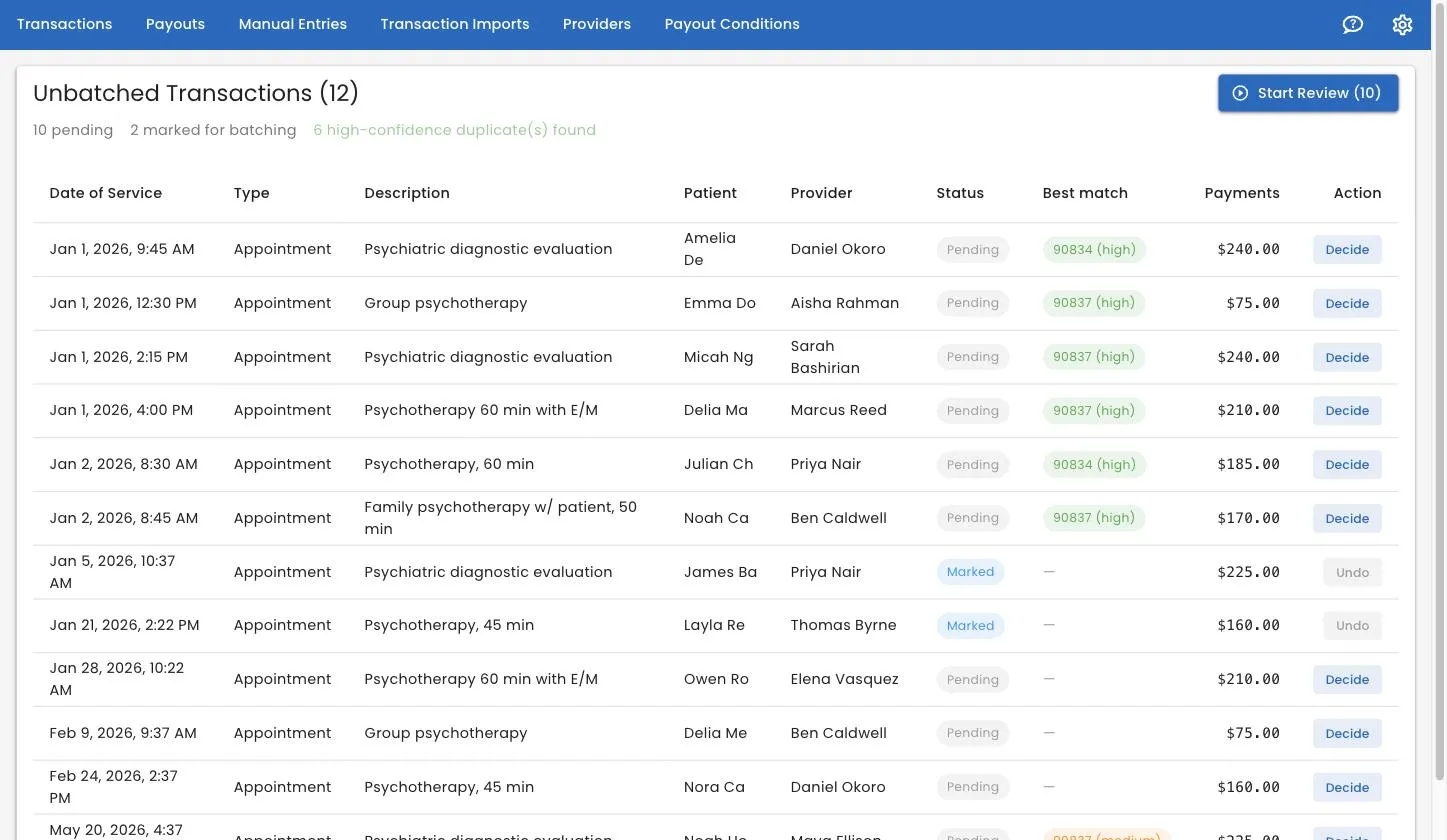
The line under the heading is your summary: how many are pending, how many you have already marked for batching, and how many high-confidence duplicates were found.
The columns
Alongside the usual date, type, description, patient and clinician:
Status — Pending means undecided; Marked means you have already decided to include it in the next payout.
Best match — the most likely original, if Track 2 Pay found one. The chip shows the service code and a confidence level: high (green), medium (orange) or low (gray). A dash means no plausible candidate was found at all, which usually points to a genuinely missed session.
Action — Decide to open it, or Undo to reverse a decision you have already made.
How the confidence rating works
Track 2 Pay looks for candidates with the same clinician on the same day, then scores them on how much else agrees: the client’s name, how close the times are, the appointment type, the record type, the amount, and whether the candidate has already been paid.
- High — the client matches and the time matches. Almost always the same session.
- Medium — the client matches, or several weaker signals agree. Worth a proper look.
- Low — same clinician, same day, and not much else. Treat with suspicion.
The rating is advice, not a verdict. You know things the software does not.
Deciding, one at a time
Click Decide on any row.
You get the flagged item, and underneath it a Matching Transactions table:
each candidate with its confidence level, and — most usefully — a
Differences column showing exactly which fields differ, as Field: old → new. If nothing differs it says Identical fields.
That differences list is normally the whole answer. Service Code: 90834 → 90837 on an otherwise identical session means somebody corrected the code in
your billing system and the corrected version came in as a new row. It is a
duplicate.
You then have two choices:
It is a duplicate. Click Override on the matching candidate. This merges the flagged item into the original, which stays as the record. You will be asked to confirm.
It is real and unpaid. Click Not a duplicate — include in next batch. Its status becomes Marked, and the next payout you create will sweep it in even though it falls before that payout’s start date.
Changed your mind? Undo puts it back to pending.
Deciding in bulk — the review wizard
If you have a dozen of these, clicking through them individually is tedious. Click Start Review for a full-screen, one-at-a-time flow.
Each screen shows the unbatched item on the left and the likeliest duplicate on the right, with the differences between them called out and a confidence chip. Where there are several candidates, you pick one from a list.
Three buttons, each with a keyboard shortcut:
| Key | Button | Meaning |
|---|---|---|
| D | Duplicate | Merge into the selected match |
| B | Include in batch | It is real; pay it next time |
| S | Skip | Decide later |
A progress bar tracks how far through you are, and the end screen tells you how many you resolved and how many you skipped.
The wizard only pre-selects a match when the candidate is plausible, so you cannot merge a weak match by hammering D. When there is no good candidate, it says so and leaves the choice to you.
Everything is reversible and recorded
Each decision on this list is logged with who made it and when, alongside how the session looked at the time. Merges can be undone, and a marked session goes back to pending with Undo.
No decision here is a black box, and none of them is final in the way a finalized payout is. If you get one wrong, it can be put right.
The other check on the page is not the same in this respect: Keep and Delete in removed in TherapyNotes are permanent. Read that page before working through it.
Working habits
Do this before creating a payout. When you click New Payout Batch, any undecided items produce a warning — from either list. Clearing them first means the payout you create is complete.
Deal with them while they are fresh. You may still remember a session flagged last week. One flagged five months ago, you will not.
A row with no best match is usually genuine. If Track 2 Pay found nothing resembling it, there is probably nothing to duplicate — it is a session that was genuinely missed, and marking it for the next batch is the right call.
When you cannot tell, check the source. Open the session in TherapyNotes. If it exists once there, it should exist once here.
High confidence still deserves a glance. It is right nearly all the time, which is exactly why the occasional exception is easy to wave through.
Related
- Sessions removed in TherapyNotes — the other check on this page.
- Re-imports and adjustments — why duplicates appear in the first place.
- Running a payout
- Transactions and payments
Still stuck? Open the Help menu in Track 2 Pay and choose Support, or read how to get support.