

Manual entries
Adding a session by hand for work that never made it into your billing export, and the approval step it goes through.
Last updated: July 19, 2026
Some things never make it into the billing export. A superbill session paid directly. A late-cancellation fee. A workshop. A correction to something that was billed wrongly and cannot easily be fixed at the source.
Manual entries are how those get into Track 2 Pay — typed in by hand, then checked by somebody else before they join the ledger.
This feature is optional. If you do not see Manual Entries in the top menu, it is not switched on for your account. Ask support to enable it.
Why there is an approval step
Because a manual entry is somebody typing a number that turns into money paid out. Unlike an import, there is no billing system behind it to check it against.
So manual entries follow a maker–checker pattern: one person writes it, a different kind of person approves it. Only Owners and Editors can approve. That way a clinician can submit their own out-of-system work, but cannot approve their own payment.
Creating one
Click New Entry. The form has five parts.
Provider — which clinician this belongs to. Pick from the list of existing provider records.
Transaction Information — the Transaction Type, the Transaction Date and the Transaction Time. Type is a dropdown of the types already in your data; if you type something new, Track 2 Pay checks that you meant to before adding it, so a typo does not silently create a whole new category.
Time is 24-hour format, and it is read in your account’s timezone (shown as a hint under the field).
Description — what it was, in the words you would want to see on a payout line six months from now.
Details — optional custom fields, as key/value pairs. Add a Service Code
here if you have a pay rule that matches on one. Each detail has a Key, a
Type (String, Number or Boolean) and a Value.
Payments — one or more lines, each with a description and an amount. Split them the same way you would on an imported session: client portion and insurance portion separately. A running total shows underneath.
Click Create and it is saved as a Draft. Nothing has happened yet.
The workflow
An entry moves through these states:
| Status | What it means | What happens next |
|---|---|---|
| Draft | Being written; only you are looking at it | Edit it freely, or Submit for Approval |
| Pending Approval | Waiting for an Owner or Editor | They Approve or Reject it |
| Importing | Approved; being added to the ledger | Nothing — it takes a moment |
| Imported | It is a real transaction now | Nothing, unless you need to correct it |
| Rejected | Sent back with a written reason | Edit and Resubmit |
| Revision | Being reworked after a rejection | Submit for Approval again |
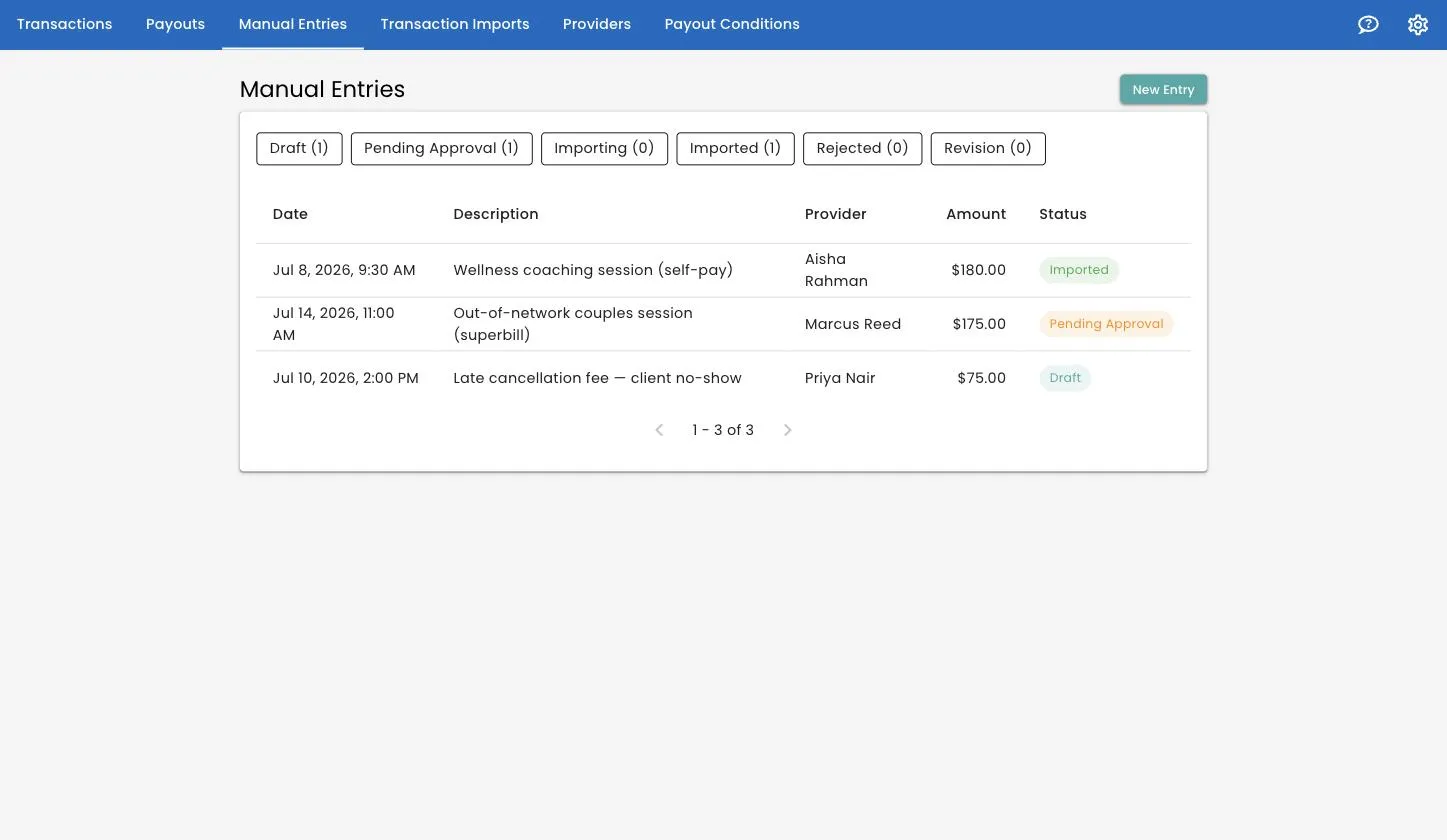
The chips across the top of the list filter by status, with a live count on each. Pending Approval with a number next to it is your to-do list.
Submitting
Open a draft and click Submit for Approval. It moves to Pending Approval and you can no longer edit it — which is the point.
Approving
Open a pending entry and click Approve. You will be asked to confirm, because approving imports the transaction into the live ledger. Once it lands, you are taken to the resulting import record.
From that moment it is an ordinary transaction: it appears on the Transactions page, your pay rules apply to it, and the next payout will pick it up.
Rejecting
Click Reject and write a reason. This is not optional and it should not be perfunctory — the person who wrote the entry sees exactly what you type, and it is what they will use to fix it.
The entry goes back to them as Rejected, with your reason shown on the page. They can Edit and Resubmit, which puts it into Revision and then back to Pending Approval.
Nothing is lost in this cycle. The entry keeps its history.
Correcting one after it is imported
Open the entry and click Edit and Resubmit. It goes back through the same approval loop, and once approved, the correction flows into the ledger.
If the original has already been through a finalized payout, do not try to correct it this way — void the transaction instead, which leaves an auditable adjustment. See transactions and payments.
Deleting
Drafts can be deleted outright. Anything past Draft cannot — it is part of the record, including the rejected ones.
If an import fails
Occasionally an approved entry fails to import — usually a data problem, such as a provider record that has since been changed. The entry shows Import Failed with an explanation. Fix it with Edit and Resubmit.
Who can do what
| Owner | Editor | Provider | |
|---|---|---|---|
| Create an entry | Yes | Yes | Yes |
| Submit their own entry | Yes | Yes | Yes, for their own provider record |
| Approve or reject | Yes | Yes | No |
See team and roles for the full picture.
Related
Still stuck? Open the Help menu in Track 2 Pay and choose Support, or read how to get support.