

Transactions and payments
Reading the Transactions list, opening a session to see its detail, and the two ways to remove one.
Last updated: August 9, 2026
Everything Track 2 Pay knows about your practice’s billing lives on the Transactions page. One row per session, appointment or charge, whether it arrived by import or was typed in by hand.
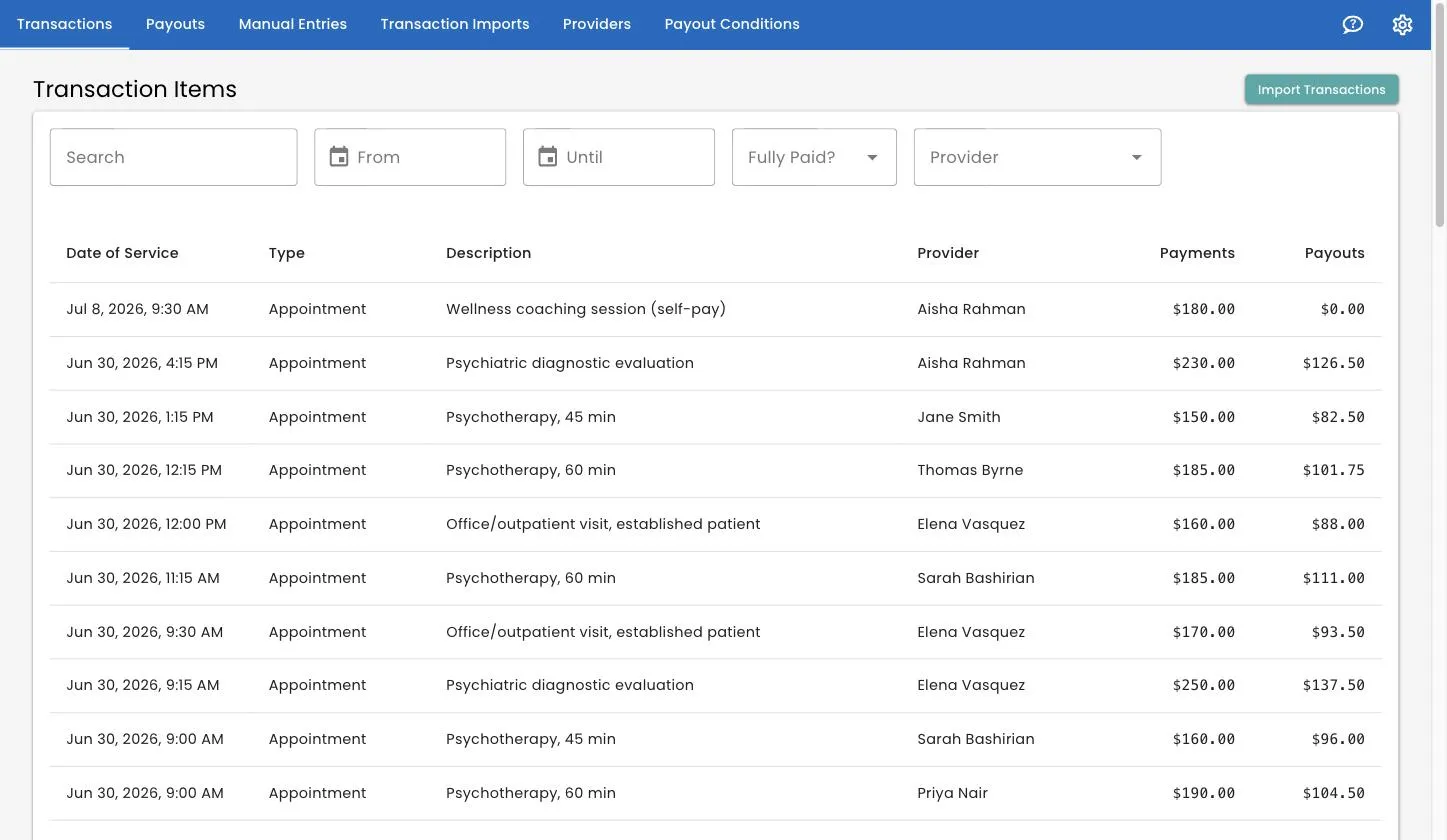
The columns
| Column | What it means |
|---|---|
| Date of Service | When the session happened — not when it was billed or paid |
| Type | Appointment, Missed Appointment, or whatever your data uses |
| Description | What the session was |
| Provider | The clinician |
| Payments | What your practice collected, all payment lines added up |
| Payouts | What the clinician is owed, once the session has been through a payout |
A Payouts figure of $0.00 means one of two things: the session has not been included in a finalized payout yet, or the rule that matched it pays nothing (some practices pay 0% for missed appointments, for example).
Finding things
Above the table are the filters.
- Search — type and press Enter. It searches session descriptions.
- From and Until — narrow to a range of service dates.
- Fully Paid? — Yes shows sessions where the money has all arrived, No shows ones still waiting on some of it.
- Provider — one clinician at a time.
The filters live in the page address, so you can bookmark a filtered view or send someone a link to it.
Opening a session
Click any row. You get two tabs.
Details shows everything carried across from your billing data: the service code, the appointment type, the insurer, the location, an abbreviated client name, and anything else your import brought along. It also shows the transaction’s unique identifiers, which is occasionally useful when working out why two records did or did not match.
Payments lists each payment line separately — the description, the amount, and Owed to Provider once the session has been through a payout.
Why a session has more than one payment
Because the money arrives in pieces. A $180 session might be $30 from the client and $150 from insurance, and those two amounts turn up weeks apart.
Track 2 Pay tracks them as separate lines so it can pay out each one when it actually lands, rather than making the clinician wait for the slowest payer. This is also why a session can appear in one payout for the client portion and again, later, as a past payment for the insurance portion. See re-imports and adjustments.
Changing a transaction
You cannot edit an imported transaction directly, and this is deliberate: your billing system is the source of truth. Correct it there and re-import, and Track 2 Pay will update the existing record rather than creating a new one.
What you can do is remove one, and there are two ways depending on whether it has been paid for.
Delete — for sessions not yet paid
If a transaction has never been included in a finalized payout, you can delete it outright. Open it and use the delete (bin) button. You will be asked to confirm; it cannot be undone.
Deleting is right for something that should never have been there — a test row, a session imported against the wrong account.
Void — for sessions already paid
Once a transaction has been through a finalized payout, deleting it would tear a hole in a closed period. Instead you void it, using the dollar-off button on the transaction.
Voiding adds an offsetting payment line, literally named Manual Adjustment, that brings the total to zero. The original session, the original payment and the original payout all remain visible and intact; the adjustment sits alongside them, and the net effect is nil.
That adjustment flows into the next payout as a negative amount, correcting what the clinician is owed going forward.
Why not just delete it? Because a finalized payout is a record of what you paid somebody. Editing history would make it impossible to explain, six months later, why a clinician’s paycheck was the size it was. Voiding leaves both the original and the correction on the record.
What you can see, by role
If you sign in with the Provider role, the Transactions page shows only sessions belonging to your own provider record, and only the payout figures on batches that have been published. There is no delete or void, and no import button.
See team and roles.
Related
- Manual entries — adding a transaction by hand.
- Integrity checks — sessions flagged as possible duplicates.
- Sessions removed in TherapyNotes — sessions flagged as deleted at the source.
- Payout batches — how sessions turn into money owed.
Still stuck? Open the Help menu in Track 2 Pay and choose Support, or read how to get support.