

Batch calculations
Once-a-period amounts — supervision overrides, bonuses, billing fees and what the practice kept — worked out on top of the ordinary session-by-session payouts.
Last updated: July 26, 2026
A payout condition asks what share of this payment does the clinician get?, and runs once for every payment.
A batch calculation asks what other amounts does this pay period produce? It runs once per payout batch, after the session-by-session work is done, and produces a single dollar figure for the period.
These are the numbers most practices keep in a spreadsheet next to Track 2 Pay: the supervisor’s cut, a volume bonus, the billing service’s fee, what the practice kept.
You will find them under Batch Calculations, next to Payout Conditions. Only Owners and Editors can see them.
The two kinds
Every batch calculation produces one amount. What happens to it depends on whether you name a Payee:
| Payee | What happens to the amount |
|---|---|
| A clinician | Added to that clinician’s payout for the period. They see it. |
| Empty | An informational metric — a card on the payout summary. Clinicians never see it. |
Overrides and bonuses are the first kind; “what the practice retained” is the second.
Amounts are entered in cents
Every money figure you type into a batch calculation is in cents.
50000is $500.00; a condition of Greater Than500000means $5,000.00. Results are always displayed as dollars — only the definition screen works in cents.
Session counts are the exception: 100 means 100 sessions.
If a bonus comes out a hundred times too small, this is why.
The list
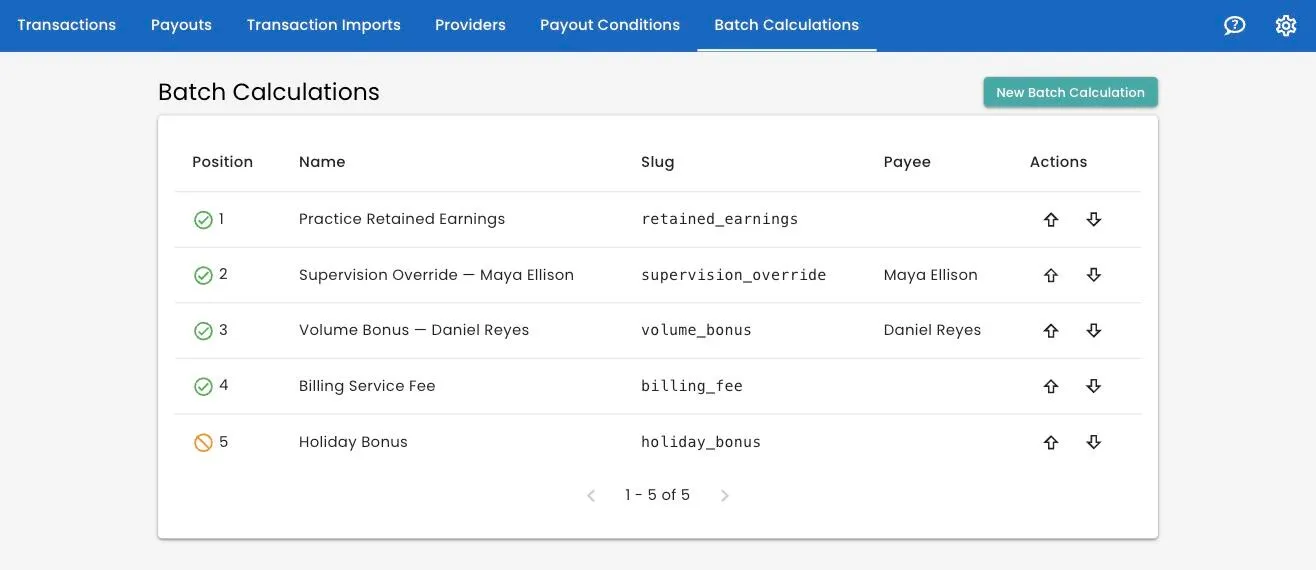
Each row shows its Position, Name, Slug and Payee, with a green check for enabled and an amber sign for disabled. The arrows under Actions move it up and down, and that order matters — see order and chaining.
New Batch Calculation asks only for a name. As with payout conditions, it is created disabled and at the bottom of the list, so you can set it up without it affecting anything.
Building one
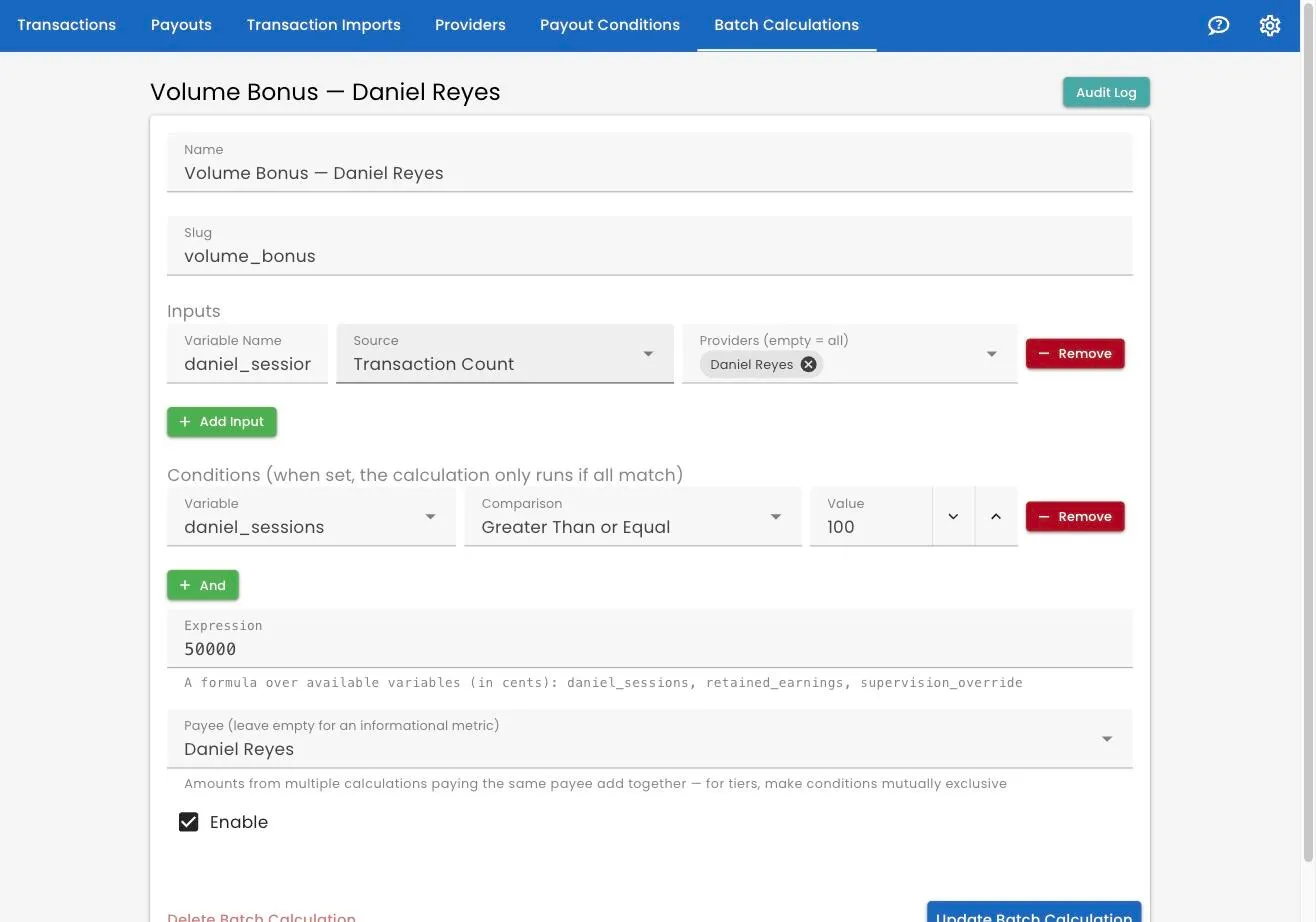
Name
What this amount is. It shows on the payout summary and on the snapshot your
clinicians see, so write it for them: Supervision Override — Maya Ellison tells
a supervisor exactly what the extra money is.
Slug
A short, plain name for the result — supervision_override,
retained_earnings. Track 2 Pay fills it in from the name; you can change it.
It exists so that a later calculation can use this one’s result. If you never chain calculations together, ignore it.
Lowercase letters, numbers and underscores, starting with a letter. A few words
are reserved by the formula language — count is the one people reach for; use
sessions instead.
Inputs
An input is a number pulled out of the batch and given a name you can use in the formula. Add them with Add Input. Each has three parts.
Variable Name — what you call it in the expression. Same rules as the slug.
Source — where the number comes from:
| Source | What it totals |
|---|---|
| Sum of Payments | Everything collected on this batch’s sessions — the figure on the green Payments card |
| Sum of Payouts | Everything your payout conditions worked out as owed to clinicians |
| Transaction Count | How many sessions are in this batch |
Providers (empty = all) — leave it empty for the whole practice, or pick clinicians to count only theirs. That is how a supervision override works.
Sum of Payouts never includes amounts from other batch calculations, which is what makes it safe to build on. The orange Payouts card on the summary does include them, so where you pay somebody by calculation, that card reads higher than this figure.
A payment that produced no payout is not counted. If no payout condition matched it, it does not reach Sum of Payments either. If a collected total looks low, check that every kind of session is covered by a rule.
Conditions
Optional: with none, the calculation always runs. Add one with And and it runs only when that condition is true.
Each row is a Variable, a Comparison and a Value. The variable dropdown offers this calculation’s own inputs, plus the slugs of any enabled calculation above it. Values are whole numbers — cents for money, a plain count for sessions.
Add more rows and all of them must be true. There is no “or”; write a second calculation instead.
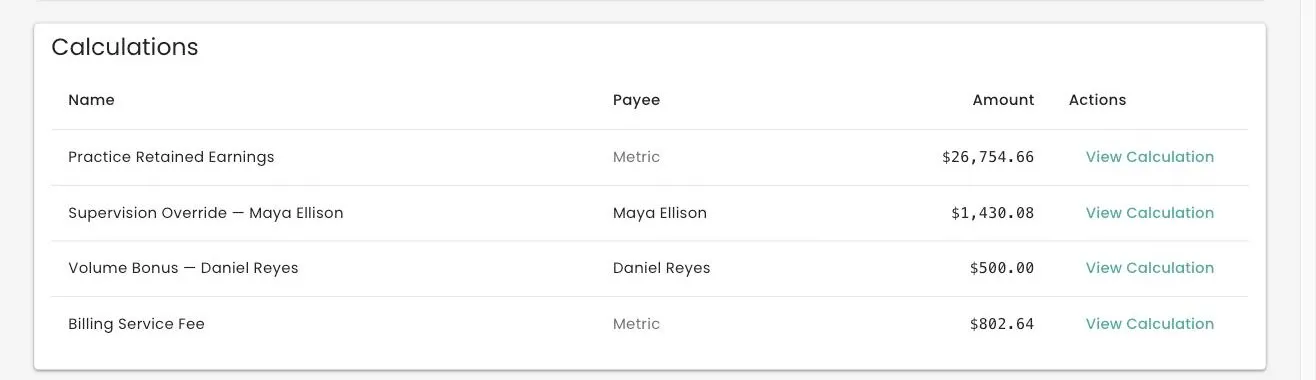
A calculation whose conditions do not match is skipped entirely. It does not produce $0.00 — it produces nothing: no row in the Calculations table, no card on the summary, and zero to any later calculation that refers to it. That is what you want for a bonus nobody earned this month.
Expression
The formula, written over your input names. The hint under the field lists what is available.
Ordinary arithmetic works — +, -, *, /, parentheses — along with helpers
like if, min, max, round, roundup and rounddown. A plain number is
fine too: 50000 is a flat $500.00.
The result is in cents, rounded to the nearest cent.
Saving an enabled calculation checks the formula: every variable must exist, and it is test-run to be sure it produces a number. A disabled one can hold something half-finished while you work it out.
Payee
The clinician this amount is paid to. Leave it empty for a metric.
Two calculations paying the same person add together. Usually what you want — but watch it when you are writing tiers. See tiers.
Enable
A disabled calculation never runs. Tick Enable, then Update Batch Calculation.
Order and chaining
A calculation can use the slug of any enabled calculation above it, in its expression and in its conditions:
| # | Name | Slug | Expression |
|---|---|---|---|
| 1 | Practice Retained Earnings | retained_earnings |
collected - clinician_payouts |
| 4 | Billing Service Fee | billing_fee |
retained_earnings * 0.03 |
The fee has no inputs. It just reads what the first calculation worked out.
Track 2 Pay protects the chain: it refuses to move a calculation above something it depends on, or to rename, disable or delete one that another refers to — each time naming the calculation that is in the way.
So work from the bottom of the chain up. Change or remove the calculation that does the referring first.
Four that cover most practices
A supervision override
A supervisor takes 5% of what the clinicians they supervise collect.
- Input:
supervisee_payments— Sum of Payments, Providers set to the supervisees - Expression:
supervisee_payments * 0.05 - Payee: the supervisor
A volume bonus
A flat $500 once a clinician passes 100 sessions in the period.
- Input:
daniel_sessions— Transaction Count, Providers set to that clinician - Condition:
daniel_sessionsGreater Than or Equal100 - Expression:
50000 - Payee: that clinician
What the practice kept
An informational metric: everything collected, less everything owed to clinicians.
- Inputs:
collected— Sum of Payments;clinician_payouts— Sum of Payouts. Both with Providers left empty. - Expression:
collected - clinician_payouts - Payee: empty
A fee on top of another calculation
Three percent of what the practice retained, for the billing service.
- Inputs: none
- Expression:
retained_earnings * 0.03 - Payee: empty
Tiers add up unless you stop them
If you write “$500 at 100 sessions” and “$800 at 150 sessions” as two calculations paying the same clinician, somebody with 160 sessions matches both and is paid $1,300.
Make the conditions mutually exclusive:
- Tier one:
sessionsGreater Than or Equal100andsessionsLess Than150 - Tier two:
sessionsGreater Than or Equal150
A threshold like “100 sessions” is also counted per batch. It only means “per month” if you run monthly payouts.
Where the numbers show up
Calculations run while the batch is being prepared, after your payout conditions have finished — which is what lets them see the period’s final totals.
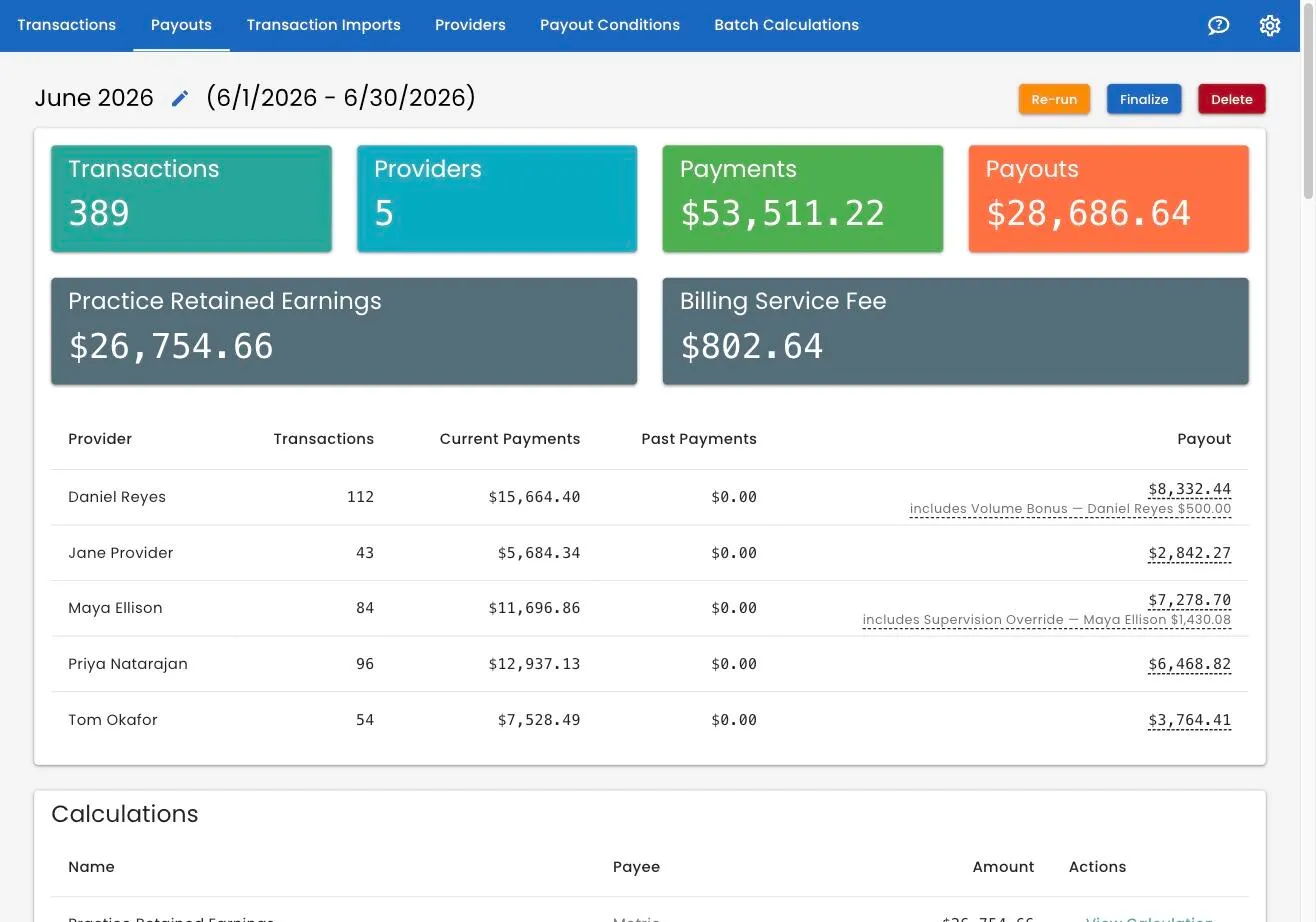
Metric cards. Each calculation without a payee gets its own card, alongside Transactions, Providers, Payments and Payouts. Owners and Editors only.
The per-clinician table. A payee’s amount is added into their Payout, with a line underneath — includes Supervision Override — Maya Ellison $1,430.08. The orange Payouts card counts these too.
The Calculations table, between the summary and the line items:
Explaining a number
Click any row of the Calculations table for the whole working:
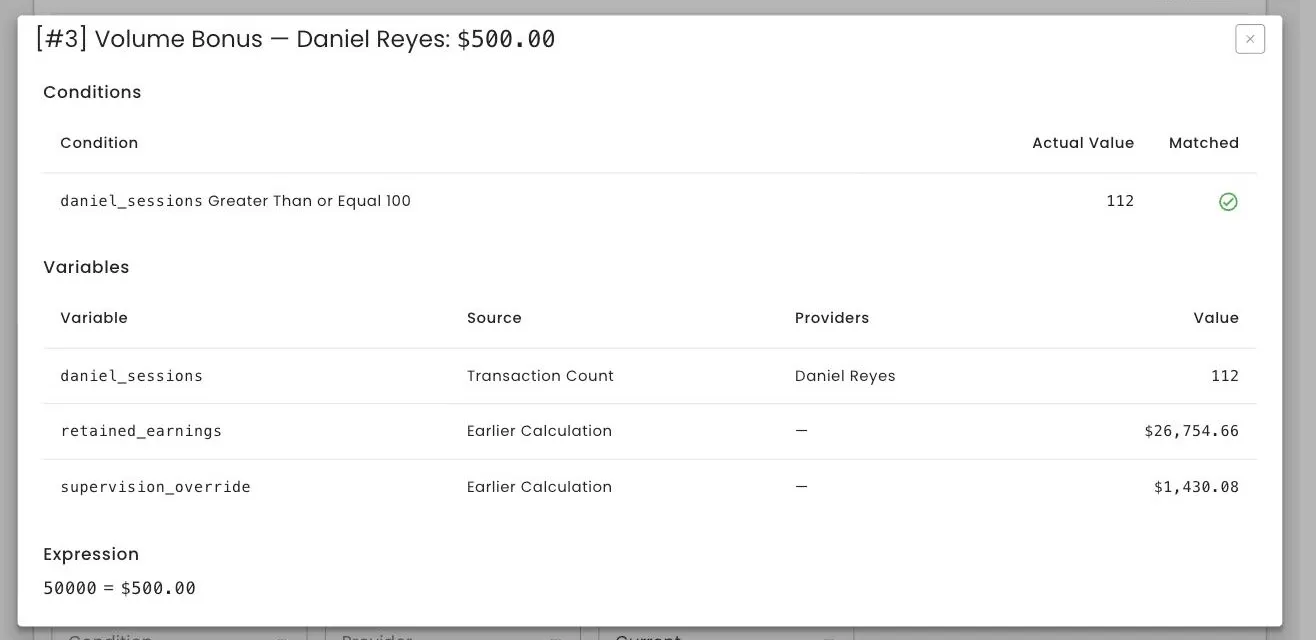
- Conditions — each one, the Actual Value the batch found, and whether it matched.
- Variables — every figure the calculation could see, its source, the clinicians it covered and its value. This lists what was available, not only what the formula used.
- Expression — the formula and what it came to.
This is the answer when a clinician asks where a bonus came from, and it is worth opening on a draft before you finalize.
Every result is recorded onto the batch, actual values included. Editing a calculation afterwards never changes a batch that has already run — the same guarantee as payout conditions. Re-running a draft recalculates everything from your current definitions.
What clinicians see
On a published, finalized batch, a clinician sees the Calculations table with only the rows where they are the payee. Everything else stays hidden: other people’s amounts, every metric calculation, the metric cards, and these pages.
Somebody paid by a calculation can now see the batch even if they ran no sessions themselves that period. See what clinicians see.
When something is wrong
A calculation that fails while a batch is preparing puts the whole batch into Failed, with the message and a View Calculation button that takes you to the definition. Fix it, then re-run the draft or create the batch again.
Most mistakes are caught when you save. What survives to a real batch is anything that depends on the data — typically dividing by an input that turns out to be zero in a quiet month. Guard the formula, or add a condition that stops it running.
Changing one later
Changes take effect on the next batch you create, and on any draft you Re-run. Finalized batches keep what they had.
Audit Log shows every change — name, slug, enabled state, position, inputs, conditions, expression and payee — with who made it and when. It reads the same way as the payout condition audit log.
Delete Batch Calculation is at the bottom left of the edit page. To stop an amount being paid without deleting it, untick Enable — the definition stays on record for the periods it was part of.
Related
- Payout conditions — the per-payment rules these sit on top of.
- Running a payout
- What clinicians see
Still stuck? Open the Help menu in Track 2 Pay and choose Support, or read how to get support.