

Importing from TherapyNotes
How to export billing data from TherapyNotes and bring it into Track 2 Pay, and what happens to it once it arrives.
Last updated: August 9, 2026
Track 2 Pay reads the TherapyNotes billing export natively. You do not need to rearrange columns, rename headings, or delete anything first — export the file and upload it as it comes.
Exporting from TherapyNotes
In TherapyNotes, produce your standard billing export for the period you want, and save it as an XLSX spreadsheet.
Two things are worth getting right at the source:
Export a range that comfortably covers the period you are about to pay. Overlapping with the previous export is fine and often sensible — Track 2 Pay recognizes sessions it has already seen and updates them rather than creating duplicates.
Make sure the data is settled. If clinicians are still correcting their notes or claims are still being reconciled, wait. You can re-import later and Track 2 Pay will handle it correctly, but it is less work to import once, after the dust settles.
Uploading
Go to Transactions and click Import Transactions, or drag the file anywhere onto the page.
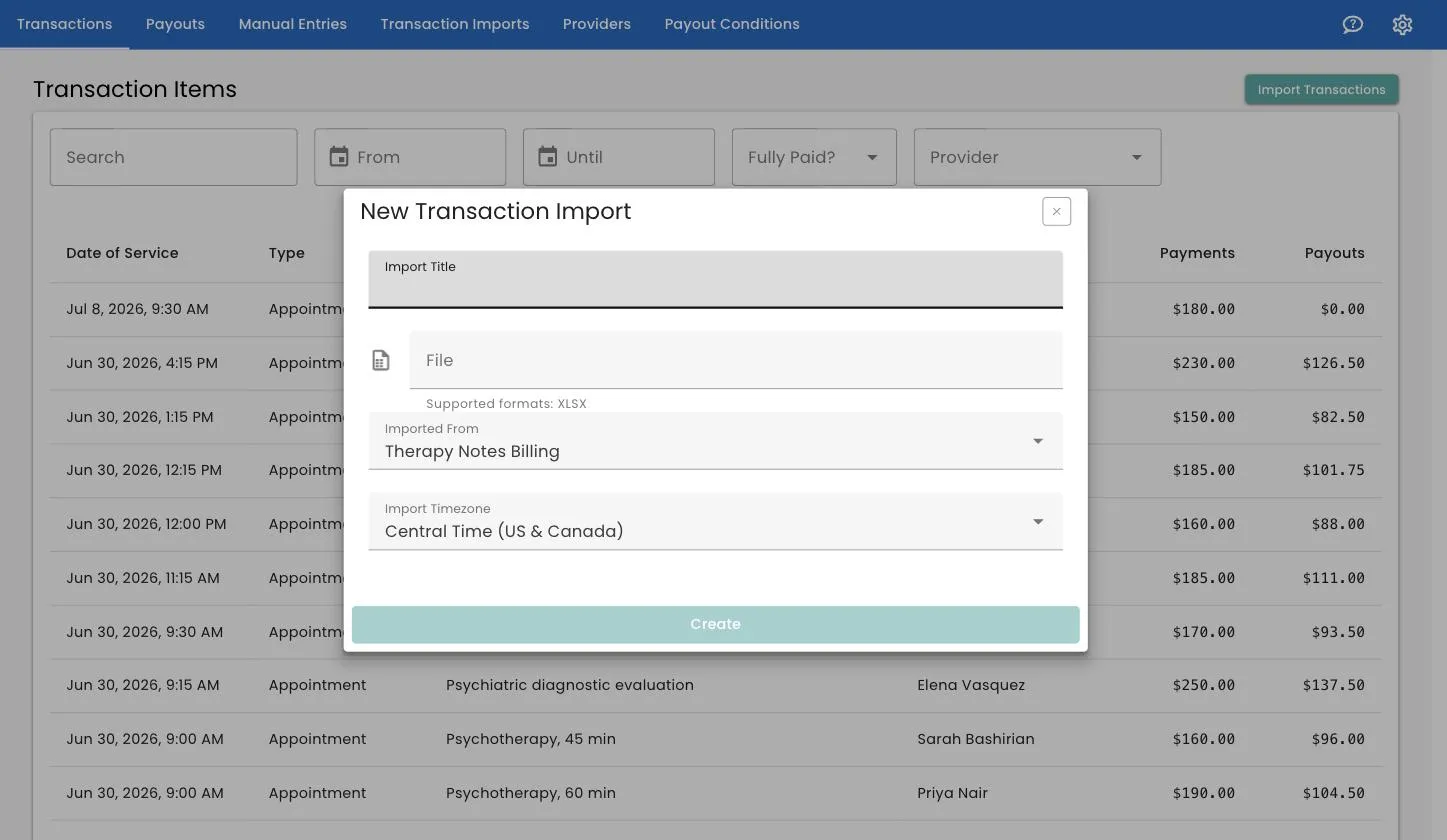
- Import Title — for your own reference; it fills in from the filename.
- File — the XLSX you just exported.
- Imported From — Therapy Notes Billing.
- Import Timezone — your practice’s timezone. See why timezone matters below.
Click Create, confirm the account, and the import runs in the background with a live progress bar.
You can leave the page. The import keeps going, and you can check on it later under Transaction Imports.
What Track 2 Pay reads
From each row it takes:
| It reads | And uses it for |
|---|---|
| Clinician name, type and NPI | Matching the session to a provider record |
| Date and time of service | Deciding which pay period the session falls into |
| Type and appointment type | Pay rules that treat session types differently |
| Service code, units, modifiers, location | Pay rules and duplicate detection |
| Patient first name, abbreviated last name, DOB, member ID | Matching sessions to each other so duplicates can be spotted |
| Primary and secondary insurer, group, in-network flag | Pay rules and reporting on the transaction |
| Patient Amount Paid | A payment line named Patient Amount |
| Insurance Amount Paid | A payment line named Insurance Amount |
The two payment lines stay separate on purpose. That mirrors how the money actually arrives, and it means the patient portion and the insurance portion can be paid out independently — which matters when insurance settles weeks later.
What it skips
By default Track 2 Pay imports only rows whose Type is Appointment or Missed Appointment. Everything else in the export is ignored.
If your practice needs other record types included — say you bill something that TherapyNotes categorizes differently — support can add them to your account. You will see them listed under Additional Record Types on your account settings page. See account settings.
Group sessions
Group therapy needs one piece of setup before you import it. Several attendees share the same clinician, time and service code, so without help they look like duplicates of each other and the import will reject them.
Support configures your group service codes once (90853 is the usual one) and the problem goes away. See group session service codes.
Why the timezone matters
Track 2 Pay asks for a timezone on every import because a spreadsheet date has no timezone of its own.
Consider a session at 8:00pm on January 31. Read in one timezone, it falls in January; read in another, it is already February 1. That decides which pay period it lands in — and, if you have already paid January, whether it shows up as a straggler.
Pick your practice’s timezone and use the same one every time. Your account also has a default timezone; the import defaults to it, so as long as that is right you can leave the field alone.
Checking the import
Go to Transaction Imports. Each upload is listed with its date, title, type and status.
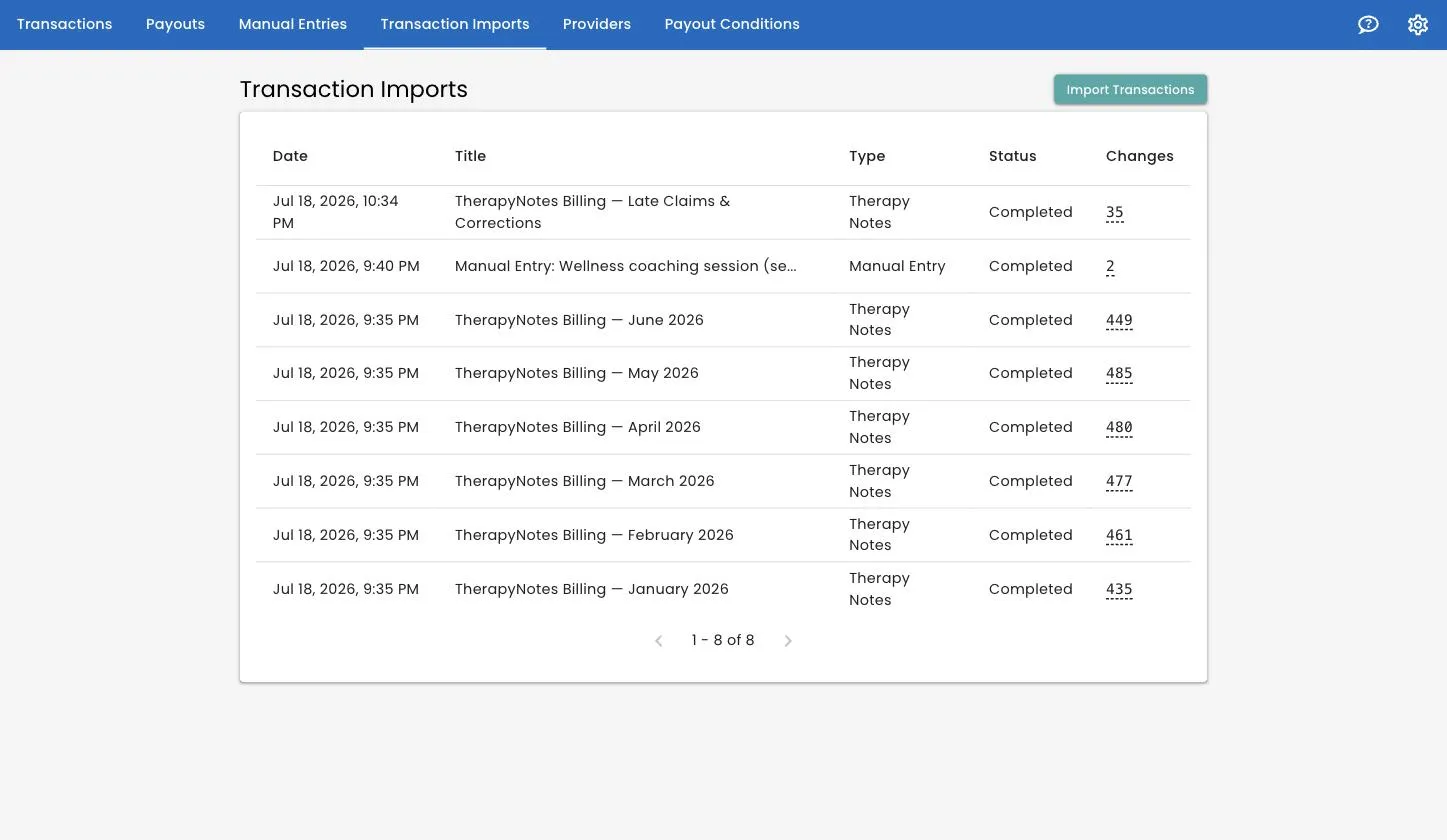
Status will be one of:
- Processing — still running.
- Completed — finished successfully.
- Failed — something was wrong with the file. Open it to see what.
The Changes column shows how many records were affected. Hover it, or open the import, for the full breakdown: Parsed Transactions, New Transactions, Updated Transactions, New Payments, Updated Payments.
That New-versus-Updated split is the number to look at on a re-import. If you uploaded an overlapping period and see mostly updated, everything is working as it should.
Your latest report is also a cross-check
Track 2 Pay compares your newest TherapyNotes report against what it already holds. Anything it has that the report does not — an appointment somebody deleted or corrected after you exported it — is listed under Removed in TherapyNotes for you to decide on. See sessions removed in TherapyNotes.
The practical advice is: export the whole range, not a filtered slice of it. A report narrowed to one location makes everything you left out look removed, and you then have to work through a list of sessions that were never in question.
The date range itself does not matter — export a week or a quarter, whichever suits. And filtering by clinician is fine: somebody with no sessions in the report at all is left alone rather than flagged.
You can also download the original file back from the import page — useful when you need to see exactly what was uploaded three months ago.
If the import fails
The most common failure is duplicate rows within a single file: two or more rows in your export that Track 2 Pay cannot tell apart. It stops rather than guess, and tells you which rows collided.
The fix is at the source:
- Correct the duplicate entry in TherapyNotes.
- Export a fresh file.
- Upload the corrected file as a new import.
For the other failure modes, see troubleshooting imports.
Related
- Importing a spreadsheet — if you bill somewhere other than TherapyNotes.
- Re-imports and adjustments — what happens when you upload the same period twice.
- Sessions removed in TherapyNotes — what happens when an appointment is deleted after you exported it.
- Transactions and payments — what your data looks like once it is in.
Still stuck? Open the Help menu in Track 2 Pay and choose Support, or read how to get support.