

Sessions removed in TherapyNotes
What happens when an appointment is deleted or edited in TherapyNotes after you have already imported it, and how to resolve each one.
Last updated: August 9, 2026
TherapyNotes lets your staff delete or correct an appointment after you have already exported it. Track 2 Pay does not find out. It still holds the transaction, and unless somebody notices, it pays it.
The Removed in TherapyNotes check does the noticing. It compares what Track 2 Pay holds against your most recent TherapyNotes billing report and lists everything Track 2 Pay still has that the report no longer contains.
It sits on the Integrity Checks page — gear icon, top right — underneath unbatched transactions.
Only TherapyNotes data is checked. The comparison is against a TherapyNotes billing report, so sessions from generic spreadsheet imports and manual entries are never flagged.
What it finds
A deleted or corrected appointment in TherapyNotes leaves one of three things behind in Track 2 Pay, and each costs money in a different way:
| What happened in TherapyNotes | What Track 2 Pay still holds | What it costs you |
|---|---|---|
| Appointment deleted | A transaction not yet paid | It joins your next payout and is paid in error |
| Appointment deleted | A transaction already in a finalized payout | It has already been paid; the money needs reversing |
| Appointment edited — a corrected service code, say | The corrected version came back as a new transaction; the original is still there | The clinician is paid twice for one session |
All three are caught before your next payout batch goes out, provided you clear the list first.
Reading the list
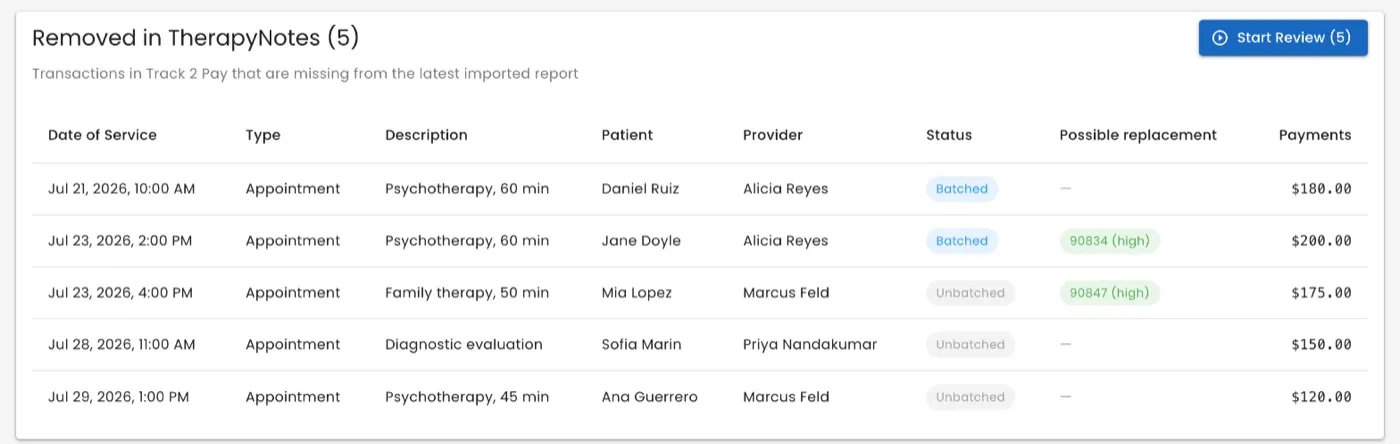
Alongside the date, type, description, patient and clinician, two columns do the work:
Status — Batched means the session has already been through a finalized payout. Unbatched means it has not. This decides what you are allowed to do about it, so read it first.
Possible replacement — the most likely corrected version of the same session, shown as its service code and a confidence level. A dash means nothing resembling it was found, which usually means the appointment was simply deleted rather than edited.
Oldest first. Start Review works through the whole list.
What it compares against
The last TherapyNotes billing report you uploaded successfully, and only the dates that report covered.
Three things follow from that, and they are the ones worth knowing:
Upload a new report and the list is rebuilt against it. Sessions you have imported since are not flagged for being missing from an older report.
A filtered report causes false alarms. If you exported only one location, everything you left out looks removed. Upload the whole range instead when you can — it saves you deciding on sessions that were never in question.
Filtering by clinician is safe. Somebody with no sessions at all in the report is left alone rather than flagged.
Resolving each one
Click Start Review. Track 2 Pay walks you through the flagged transactions one at a time.
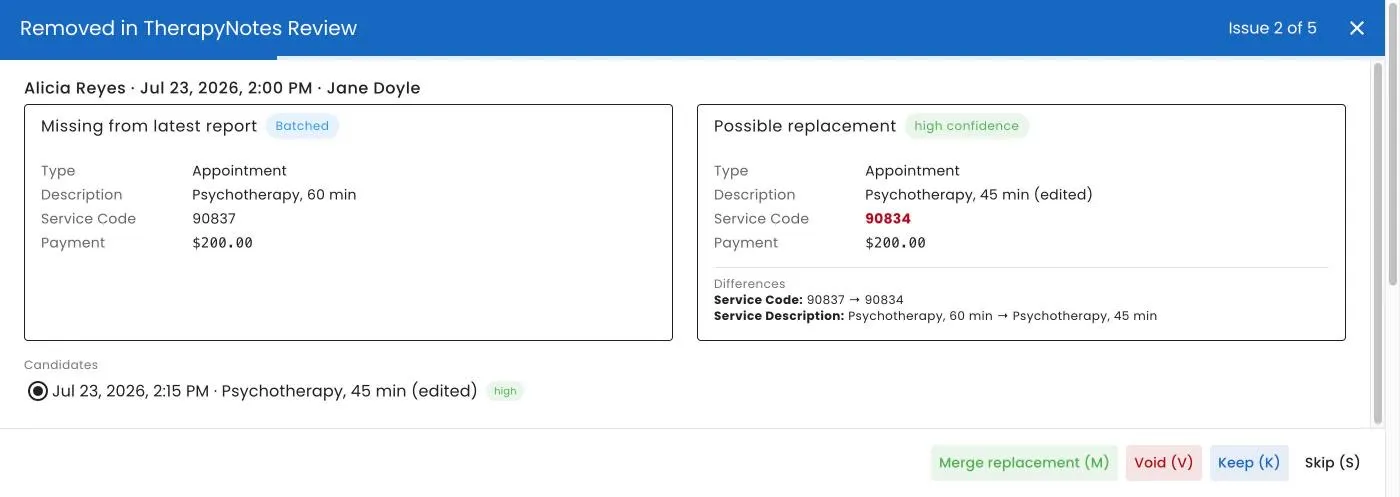
On the left, Missing from latest report — the flagged session, with a
Batched or Unbatched chip. On the right, Possible replacement — the
best candidate, with a confidence chip and a Differences list spelling out
exactly what changed, as Field: old → new. Where there is more than one
candidate you pick from the list underneath.
That differences list is usually the whole answer. Service Code: 90837 → 90834
on an otherwise identical session means somebody corrected the code and the
corrected version arrived as a new record.
If nothing plausible turns up, the wizard says so: No likely replacement found — the appointment was probably deleted in TherapyNotes.
There are four ways to resolve a session. Which of them you are offered depends on whether it has already been paid.
Merge replacement — the appointment was edited
Available whenever a replacement is selected. Use it when the session still happened but its details changed.
The two records become one, so the clinician is paid once for it and future imports stop splitting it in two. If one of the pair has already been paid, that is the one Track 2 Pay keeps — a finalized payout is never disturbed.
Void — the appointment was deleted and you already paid it
Available for Batched sessions.
You cannot delete a session that has been through a finalized payout — that would tear a hole in a closed period. Voiding instead adds an offsetting Manual Adjustment that brings the session’s total to zero. The session stays on the record with its correction beside it, and your next payout picks up the negative adjustment and squares the clinician’s account.
Once its total is zero it drops off this list.
Delete — the appointment was deleted and you have not paid it
Available for Unbatched sessions.
Nothing has been paid, so the transaction can simply go. You are asked to confirm first. Track 2 Pay keeps a record of what was there, so the decision stays traceable even though the session does not.
Keep — it is missing from the report for a good reason
Sometimes a session is legitimately absent. The report was filtered to one location. The appointment moved outside the exported date range. The session is real and you intend to pay for it.
Keep records that judgment and takes the session off the list.
Keeping is permanent. The session will not be flagged again, however many reports you import — otherwise the same false alarm would come back every time. There is no undo in the interface, so contact support if you keep one by mistake.
Skip
Moves on without recording anything. Skipped sessions stay on the list for next time.
Keyboard shortcuts
| Key | Action |
|---|---|
| M | Merge replacement |
| V | Void |
| X | Delete |
| K | Keep |
| S | Skip |
The keys stop working while a confirmation dialog is open, so you cannot confirm a deletion by accident.
The wizard only pre-selects a replacement when the candidate is plausible — a habitual M cannot merge a weak match. Low-confidence candidates are still there in the list if you decide one is right.
At the end you get a summary — Resolved 1 · Skipped 3 — and the list behind it refreshes when you close the wizard.
The warning on a new payout
When you click New Payout Batch while this list still has sessions waiting, you will see:
5 transaction(s) may have been deleted in TherapyNotes and still need review. Review Integrity Checks
It does not stop you creating the batch. It is telling you that the batch you are about to create may pay for sessions that no longer exist. Clearing the list first is the cheaper order to do things in. See running a payout.
“The latest import has no staged records”
Instead of a list you may see:
The latest import has no staged records; upload a new TherapyNotes report to enable this check.
Your most recent TherapyNotes import is too old for this check to use. Upload a fresh TherapyNotes billing report and the check starts working.
You get a message rather than an empty list on purpose: an empty list would read as nothing is missing, and until you upload something current, that is not something Track 2 Pay can tell you.
Working habits
Clear it before you create a payout. This check exists to be run before the money goes out, not after.
Read the Status column before deciding. Batched and unbatched sessions have opposite correct answers to the same situation — a deleted appointment is a delete if you have not paid it and a void if you have.
A dash in Possible replacement usually means deleted, not edited. If nothing in the same day resembles it, there is probably no corrected version to merge with.
Be slower with Keep than with the rest. Merge, void and delete all leave something behind. Keep is the one decision you cannot take back yourself.
When you cannot tell, look in TherapyNotes. The appointment is either there or it is not, and that answers it.
Related
- Integrity checks — the other check on the same page, for sessions that slipped past a closed period.
- Re-imports and late money — why corrected sessions come back as new records.
- Importing from TherapyNotes
- Running a payout
Still stuck? Open the Help menu in Track 2 Pay and choose Support, or read how to get support.