

Running a payout
Creating a pay period, reading the numbers, re-running when something is wrong, and finalizing when it is right.
Last updated: August 9, 2026
A payout batch is one pay period’s calculation. You tell Track 2 Pay which service dates to cover; it applies your pay rules to everything eligible and tells you what each clinician is owed.
You will find these under Payouts.
Before you start
Two things should be true:
- your billing data for the period is imported and settled;
- you have at least one enabled payout condition.
If either is missing, you will get a payout with nothing in it, or one where everybody earns nothing.
Creating one
Click New Payout Batch.
Before the form, you may see one or more notices. None of them stops you from creating the batch — they exist so nothing in it surprises you later.
- a warning that some unbatched transactions still need a decision — these are stragglers dated inside a period you have already paid. You can resolve them now or handle them next time. See integrity checks.
- a warning that some transactions may have been deleted in TherapyNotes and still need review. These are sessions your latest TherapyNotes report no longer contains — proceed and you may pay for appointments that no longer exist. See sessions removed in TherapyNotes.
- an information notice that some transactions marked for batching will be included. These are stragglers you already decided to pay, and they will be swept in even though they fall before your start date. That is intended.
Then fill in:
- Description — what you will call this period.
June 2026 Payouts,Week of June 15. - Service Start Date and Service End Date — the range of session dates, not payment dates. Track 2 Pay suggests a start date that continues from where your last payout ended, which avoids both gaps and overlaps.
Click Create. It runs in the background with a progress bar; large periods take a moment.
Reading the result
The batch opens in Draft status.
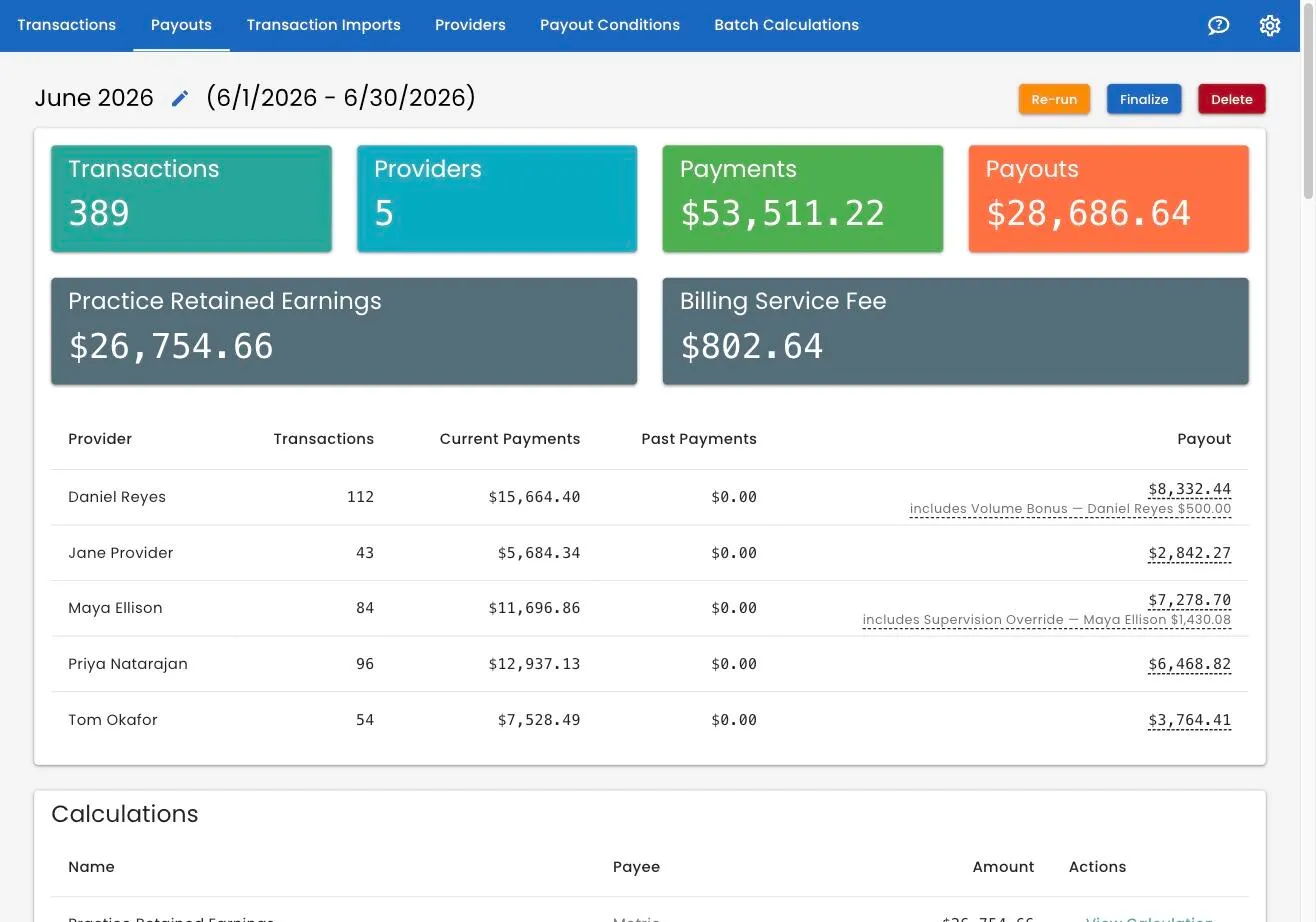
The headline tiles
| Tile | What it counts |
|---|---|
| Transactions | Sessions included |
| Providers | Clinicians being paid |
| Payments | Everything collected — current and past payments together |
| Payouts | Total owed to everybody |
Any informational batch calculation you have set up gets its own card here too.
The per-clinician table
One row per clinician: their session count, their current payments, their past payments and their total payout.
A batch calculation paid to somebody is added into their payout and noted underneath — includes Supervision Override — Maya Ellison $1,430.08.
This is the table to check. You know your practice. Does the session count look right for each person? Is anybody unexpectedly high or low? Is somebody missing who should be there?
Click a payout amount and it copies to your clipboard, ready to paste straight into payroll.
The Calculations table
A Calculations card sits between the summary and the line items, listing each calculation, its payee — or Metric — and the amount. Click a row for the full working behind the figure.
Worth a look before you finalize; there is more in batch calculations.
The line items
Below that is every individual calculation: which Condition applied, the date of service, the session, the clinician, what was collected and what is owed.
Filter it by Condition, by Provider, or by Payment Type (Current or Past). Two icons on each row jump you to the rule that was applied, or to the transaction itself.
When a total looks wrong, this is where you find out why. Filter to that clinician, look at the Condition column, and you will usually see immediately that a rule you did not expect is winning.
Current and past payments
This distinction is worth understanding properly, because it is the thing spreadsheets get wrong.
Current payments are money on sessions dated inside this period. The ordinary case.
Past payments are money that has arrived since on sessions from a period you already paid. Insurance settling six weeks after the session is the classic example.
Track 2 Pay pays those out at the rate that applied when the session originally happened — not at today’s rate. If a clinician was on 50% in January and is on 60% now, January’s late insurance money still pays at 50%. That is correct: they were paid 50% for that work at the time, and the rest of that payment belongs to the same deal.
You do not have to do anything to make this happen. Import the updated billing data and the trailing amounts appear in the next payout automatically.
Fixing something
While a batch is in Draft you can change almost anything.
Wrong rate applied. Fix the payout condition — usually its position in the priority order — then come back and click Re-run. The whole batch recalculates against your current rules.
A bonus or override is wrong, or missing. Fix the batch calculation, then Re-run. A calculation whose conditions did not match is left out of the batch entirely rather than shown as zero.
Wrong description. Click the pencil next to the title.
Wrong dates. Dates cannot be edited. Delete the batch and create a new one; nothing is lost, because nothing was committed.
Missing sessions. Import them, then Re-run.
Re-running is available on drafts only. It is not a limitation so much as the point: draft is the stage where you experiment, final is the stage where you have decided.
Finalizing
When the numbers are right, click Finalize. Two steps, because it is permanent.
Step one — publish or not. A tickbox, on by default, marked Publish snapshot. Leave it ticked and clinicians with a login can see their own totals. Untick it and the figures stay within your team. You cannot change this afterwards, so decide deliberately.
Step two — confirm. You are shown what will happen and asked to tick a box confirming you have checked, and that it cannot be undone. Then click Finalize.
What finalizing does
- Locks every amount. They will not change again.
- Marks every included session as batched — paid for — so no future payout picks it up a second time.
- Stores the rule and the rate used on each line, and the full working behind every batch calculation, so the figures stay explicable even if you rewrite your pay rules tomorrow.
- If published, makes each clinician’s own total visible to them.
What it prevents
- You cannot edit a finalized batch.
- You cannot delete it.
- You cannot re-run it.
- You cannot delete any payout condition it used.
There is no undo. If you are not certain, stay in draft. A draft batch can be re-run any number of times and deleted without trace. That is what it is for.
The statuses
| Status | Meaning |
|---|---|
| Preparing | Still gathering and calculating; check back shortly |
| Draft | Calculated, editable, nothing committed |
| Final | Locked and permanent |
| Failed | Something went wrong while preparing |
A Failed batch shows what went wrong and offers a button to view whatever caused it — the transaction, or the batch calculation whose formula could not be worked out. Fix that, then use Retry Preparing, or delete the batch and start again.
Good habits
Keep a regular rhythm. Weekly, every two weeks, monthly — whatever suits, but the same every time. Gaps between periods are where sessions get missed.
Let the suggested start date do its job. It picks up the day after your last period ended, which is how you avoid paying the same session twice or skipping a day.
Clear both integrity checks first. Deciding them before you create the batch beats an awkward conversation afterwards — and a session deleted in TherapyNotes is far easier to remove before it has been paid than after.
Read the per-clinician table every time. It takes thirty seconds and it is the best defense against a rule change that did something you did not expect.
Related
Still stuck? Open the Help menu in Track 2 Pay and choose Support, or read how to get support.