

Payout conditions
Writing the pay rules that decide what each clinician earns — matching, percentages, and the priority order that makes it all work.
Last updated: July 26, 2026
This is the part that replaces your spreadsheet formulas. A payout condition is one pay rule, and it says two things:
- what it applies to — this clinician, this session type, this service code;
- what it pays — a percentage of the money collected.
You write these once. Every payout from then on uses them.
A payout condition always runs per payment, and always pays a percentage. For amounts that belong to the pay period as a whole — a supervision override, a bonus, a flat fee — see batch calculations.
First match wins
This is the single most important thing to understand, and everything else follows from it.
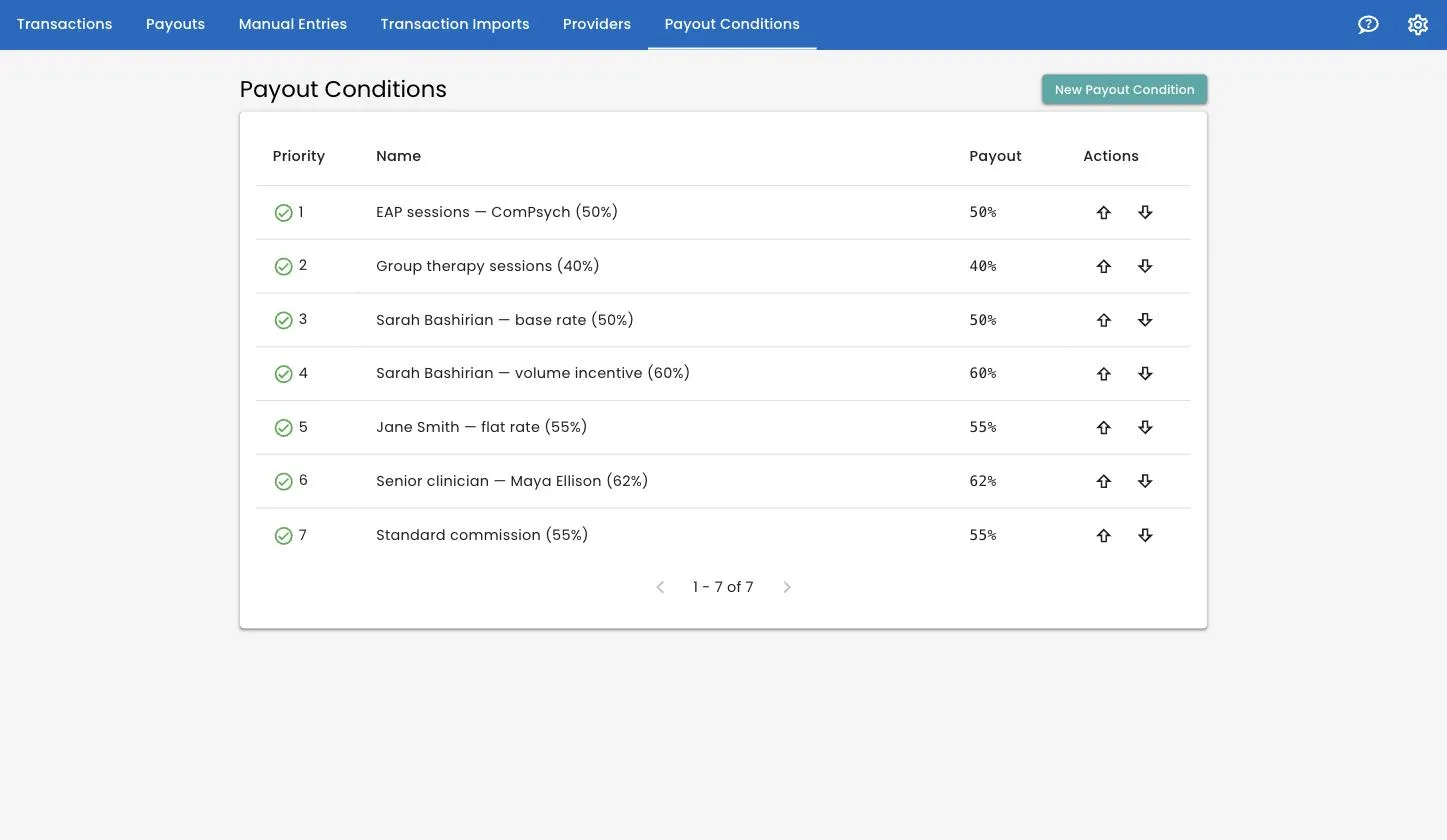
Your rules are in a numbered order. For each payment, Track 2 Pay walks the list from priority 1 downwards and uses the first rule that matches. Then it stops. No other rule is considered.
So the order is the logic. Specific rules go above general ones:
| Priority | Rule | Pays |
|---|---|---|
| 1 | EAP sessions — ComPsych | 50% |
| 2 | Group therapy sessions | 40% |
| 3 | Maya Ellison — senior rate | 62% |
| 4 | Standard commission | 55% |
A group session run by Maya matches rule 2 and pays 40% — because 2 comes before 3. If you wanted Maya’s senior rate to beat the group rate, you would move her rule above it.
Get the order wrong and nothing errors; it just quietly pays the wrong amount. This is why you check a draft payout before finalizing it.
Creating a rule
Go to Payout Conditions and click New Payout Condition. Give it a name and click Create.
Names matter more than you would think. Senior clinician — Maya Ellison (62%)
tells you everything at a glance in the list, in the audit log, and on every
payout line. Rule 3 tells you nothing.
New rules are created disabled and at the bottom of the list, so you can set one up in peace without it affecting anything.
Setting it up
Open the rule to configure it.
Conditions — what it matches
Click to add a matching rule. Each one has three parts: What to match?, a Comparison, and a value.
| What to match? | Use it for |
|---|---|
| Provider | One specific clinician |
| Transaction Type | Appointments, Missed Appointments, or your own types |
| Metadata Field | Anything carried in from your billing data — service code, insurer, location, appointment type |
| Provider Transaction Count | How many sessions this clinician has in the payout — for volume-based rates |
Metadata Field is the flexible one. Choose it and a Metadata Key dropdown appears listing every field Track 2 Pay has seen in your data. That is how you write “pay 50% for EAP sessions billed to ComPsych” — match on the insurer field.
The Comparison options depend on what you are matching. Provider, Transaction Type and Metadata Field offer Is and Is Not. Provider Transaction Count, being a number, offers Equal, Not Equal, Less Than, Less Than or Equal, Greater Than and Greater Than or Equal.
You can add more than one matching rule with the And button. When you do, all of them must be true for the rule to apply — there is no “or”. If you need an “or”, write two rules.
Payout Percent
The percentage of each payment that goes to the clinician. Enter 55 for 55%.
It applies per payment line, not per session. A session with a $30 client payment and a $150 insurance payment, on a 55% rule, produces $16.50 and $82.50 — so when insurance settles late, that portion is still paid correctly on its own.
0 is a legitimate value. Practices that do not pay for missed appointments
write exactly that rule.
Enable
Tick Enable to make the rule live. Disabled rules are skipped entirely.
A rule needs at least one matching condition and a payout percent before it can be enabled.
Click Update Payout Condition to save.
Reordering
Use the up and down arrows in the Actions column on the list page. Changes take effect immediately for any payout you create or re-run after that.
Rules that cover most practices
Everyone the same
One rule, at the bottom of the list:
- Match: Provider Transaction Count Greater Than
0 - Payout Percent:
55
Every clinician has at least one session, so this matches everything. It is the catch-all every other rule sits above.
One clinician on a different rate
- Match: Provider Is Maya Ellison
- Payout Percent:
62 - Position: above the catch-all
Nothing for missed appointments
- Match: Transaction Type Is
Missed Appointment - Payout Percent:
0 - Position: at the top
A different rate by service code
- Match: Metadata Field →
Service CodeIs90853 - Payout Percent:
40 - Position: above the catch-all, below anything more specific
A volume incentive
Two rules, one above the other:
- Above: Provider Transaction Count Greater Than
40, paying60 - Below: the catch-all at
55
A clinician with more than 40 sessions in the period matches the first rule and earns the higher rate on all of them.
If what you want is a flat bonus at a threshold rather than a different rate, that is a batch calculation instead.
Editing an existing rule
Changes save immediately, but they do not reach back into finalized payouts. Every calculated line records the rule and the rate that were used at the time, so history stays fixed.
They do apply to any draft payout you re-run. So the working pattern when a rate changes is: edit the rule, then open your draft payout and click Re-run.
The audit log
Every rule has an Audit Log button. It shows a timeline of every change: what changed from what to what, when, and who did it — name, enabled state, priority, percentage and matching rules. If a support agent was acting on your behalf, it says so.
This is what you reach for when a clinician asks why their percentage was different in April.
Deleting
A rule that has been used in a finalized payout cannot be deleted. Track 2 Pay blocks it, deliberately: the rule is part of the explanation for money you have already paid.
If a rule is no longer relevant, untick Enable. It stops applying to new payouts while remaining on record for old ones. That is nearly always what you actually want.
Rules that have never been used in a finalized payout can be deleted outright.
Getting it right before it costs you
The safe way to test a change:
- Make the change.
- Create a payout batch, or re-run an existing draft.
- Read the per-clinician table, and the line items underneath it — each line shows which rule was applied.
- Adjust and re-run as many times as you need.
- Only then finalize.
Draft payouts exist precisely so you can do this. Nothing is committed until you finalize.
Related
- Payout batches — running a period.
- Batch calculations — amounts worked out once per period rather than per payment.
- Your clinicians
- Key terms
Still stuck? Open the Help menu in Track 2 Pay and choose Support, or read how to get support.